Want to play a game or watch a video and talk to your teammates (or Mom) at the same time? We know!
Once your headphones are paired via Wireless to a source device, you can change the input source to Bluetooth by clicking the Multi-function button until you hear "2.4 and Bluetooth" to add a Bluetooth device (see the article on how to do that here).
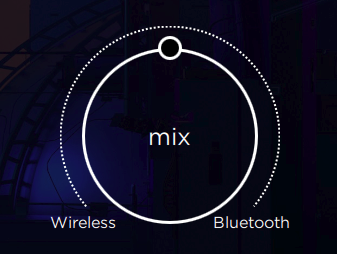
NOTE: When connected simultaneously, Penrose's microphone will be routed to the Bluetooth source and the wireless connection source. Be careful not to divulge any rebel secrets by accidentally transmitting them over wireless! If you don't want the mic to transmit on one source or the the other, there is usually a way to do this via software by disabling/muting the Penrose mic in the input settings. Each OS or app will have its own way to manage input settings, but here are ways to do that in Windows 10, Mac OSX, Discord, Skype, and some mobile phones.
On PlayStation 5: You can mute the headset microphone with the controller's mic mute button. You can also navigate into the quick menu and turn off the mic from the audio options, or you can go into console settings and switch the microphone to the controller's mic.
On Xbox X: Mute your mic in Party Chat by pressing the Xbox logo, then press the R trigger to party chat, then press Y to mute the mic.
If you wish to disable Bluetooth and only hear audio from the wireless adapter, just cycle back to wireless mode by clicking the Multi-function button until you hear "wireless". Penrose will remain paired until you turn it or the source device off, or tell your source device to disconnect or forget Penrose.
If your paired BT device receives an incoming call, it will ring through on Penrose and you can choose to answer on the device itself or by a click of Penrose's Power button. Again, you will hear both sources and the BT source will be louder, and the mic will transmit to both sources also.
After the call is ended, audio should then return to normal, with the wireless connection source at previous volume and the microphone providing its output to that source only.
If you cannot find the droids you’re looking for here, please email us at support@audeze.com, and one of our friendly support reps will get in touch as soon as possible.